Subscriptions
A Subscription represents a customer’s ongoing agreement to pay for a product at a specific rate plan, currency, and billing frequency. Subscriptions are the central entity in BillHive — invoices, payments, usage events, and orders all revolve around them.
Creating a Subscription
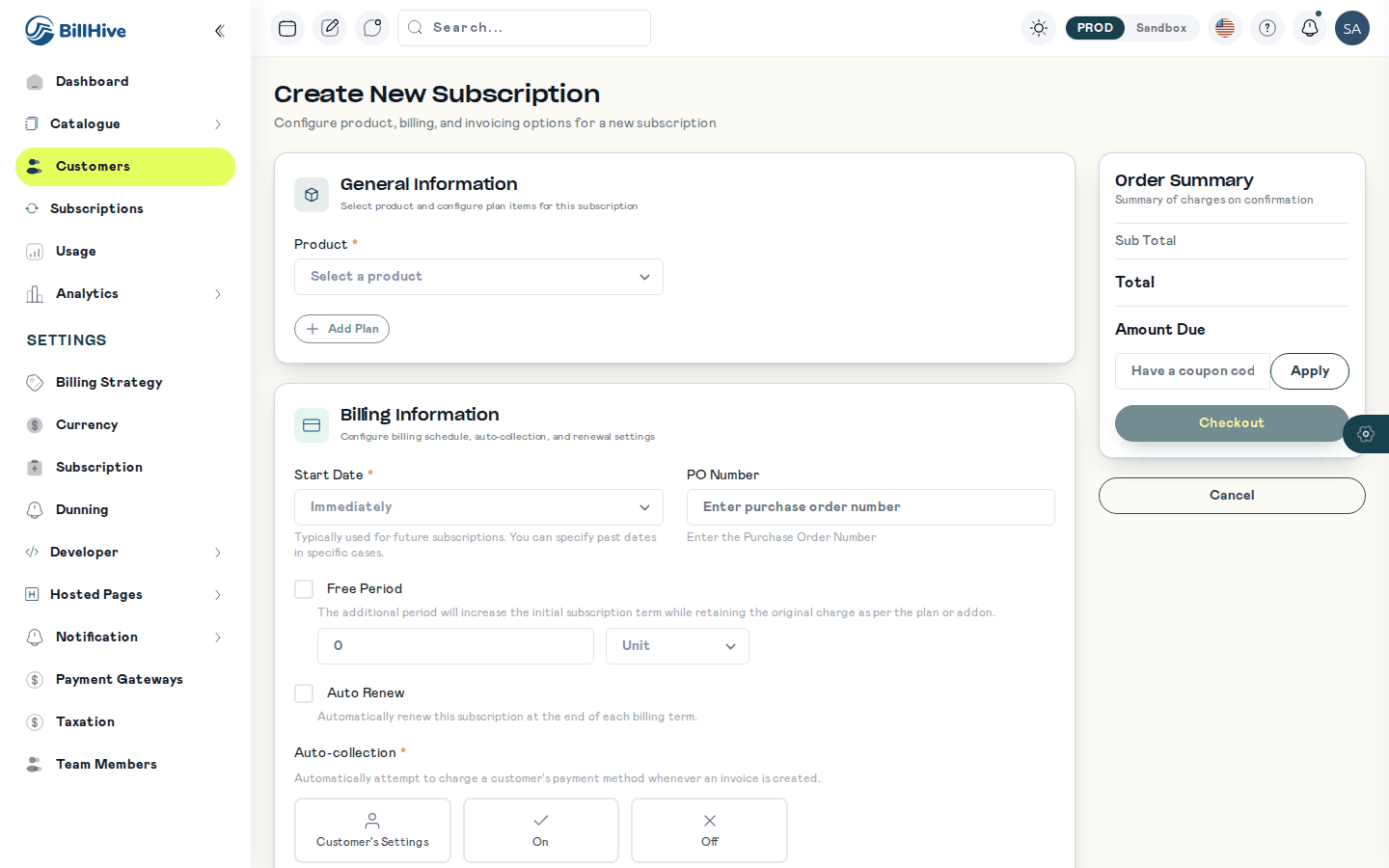
The Create New Subscription form. The order summary on the right is the estimate.
URL: /subscriptions/add or /customers/{customerId}/subscription/add
- Navigate to a customer’s page and click Add Subscription, or go to Subscriptions > Add.
- Fill in the subscription form:
| Field | Required | Description |
|---|---|---|
| Product | Yes | The product the customer is subscribing to. |
| Rate Plan | Yes | The specific plan tier (e.g., “Professional Plan”). Populated based on the selected product. |
| Currency | Yes | Billing currency (e.g., USD, INR, EUR). |
| Billing Frequency | Yes | How often the customer is billed — includes term and period (e.g., 1 Month, 12 Months). |
| Is Trial | No | Whether the subscription starts with a free trial period. |
| Trial Period | Conditional | Duration of the trial (term + period). Only shown when Is Trial is enabled. |
| Subscription Start Date | Yes | When the subscription begins. Defaults to today. Can be a past date, within the tenant’s lookback limit (see Backdated Start Dates). |
| Billing Cycles | No | Number of billing cycles for the subscription commitment. |
| Auto Renew | No | Whether the subscription automatically renews at the end of the term. |
| Payment Method | No | The payment method to charge for this subscription. |
- Review addons — mandatory addons are automatically included; recommended addons can be toggled on/off.
- Review the order estimate showing pricing, prorations, and totals.
- Click Place Order to create the subscription.
Backdated Start Dates
When you onboard an existing customer, you can create a subscription that started in the past.
- Who can backdate. Only admin channels (the BillHive web app and the API). Subscriptions created from the public checkout (Website) or the Self-Serve Portal cannot start in the past.
- How far back. Up to the tenant’s Backdate lookback (days) setting, which defaults to 90 (see Subscription Settings). A start date today or in the future is not affected by the limit.
- Rejected dates. A start date older than the limit, or any past date from a non-admin channel, is rejected with HTTP 400, for example
Start date 2026-06-01 is more than 90 days in the past (tenant lookback limit).
For a backdated start:
- The first term runs from the start date for one billing period (for example, a monthly plan started 30 days ago has a term from that date to the day before its first monthly anniversary), not from today.
- The first invoice is dated the start date. Its due date still counts from the day it is issued, so a Net 30 invoice is due 30 days after you create it.
- The subscription starts Active, and days already elapsed in the term are counted as used.
- Only the first term is billed. If the start date is so far back that the term has already ended, the subscription is created with that ended term, and renewal picks up from there: each renewal creates the next term starting the day after the previous one ends, so later terms are billed one at a time rather than all at once.
- Trial plans are not backdated: the trial starts today.
Viewing a Subscription
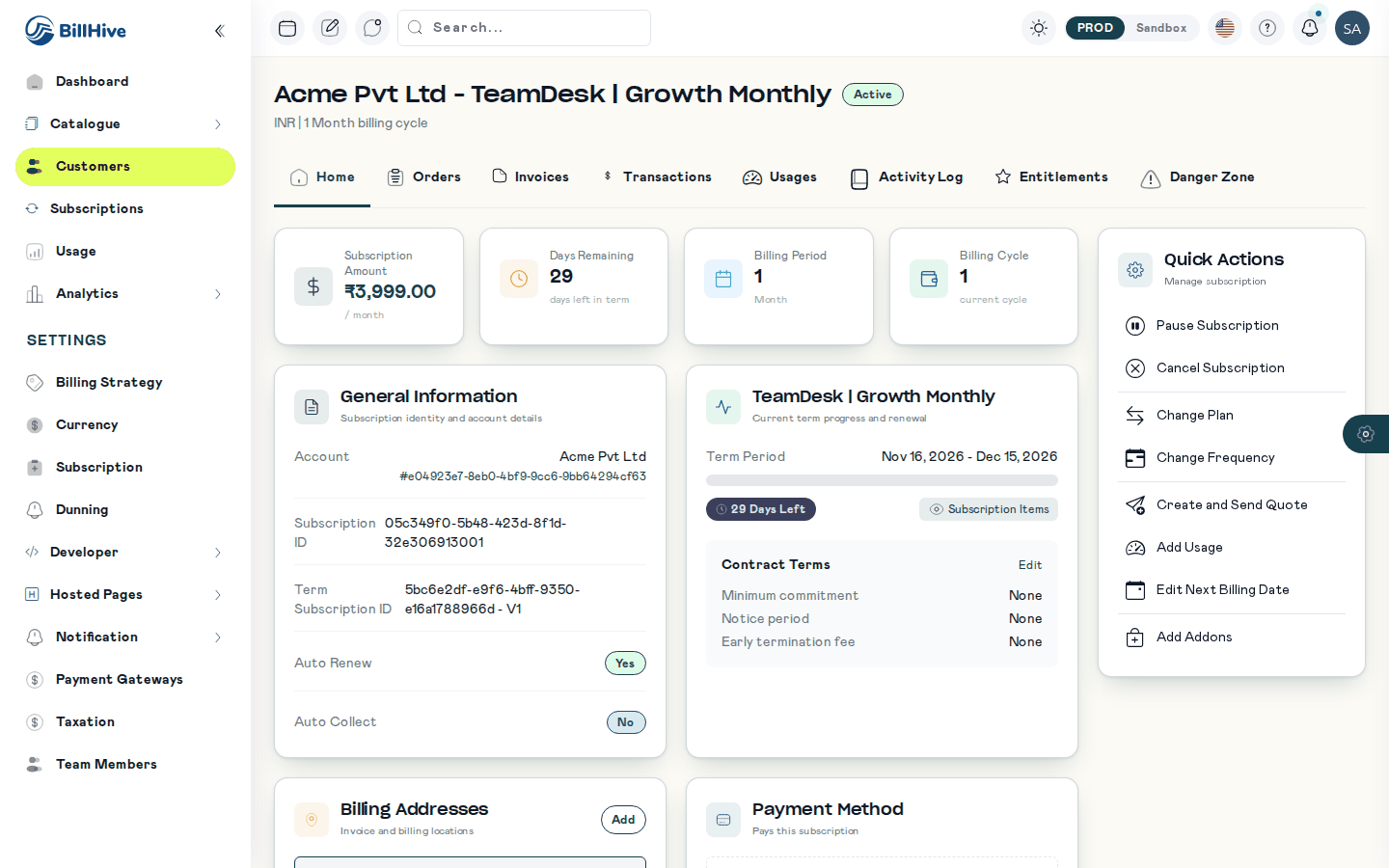
A subscription page. Quick Actions shows only the actions the status allows.
URL: /customers/{customerId}/subscriptions/{subscriptionId}
The subscription details page is organized into tabs:
| Tab | Content |
|---|---|
| Home | General information, term progress, status, amount, billing period, addons |
| Orders | All orders associated with this subscription (creation, amendments, renewals) |
| Invoices | Generated invoices with status and amounts |
| Usage | Usage events and summary for usage-based pricing models |
| Activity Log | Complete audit trail of all changes and events |
| Danger Zone | Destructive actions like cancellation |
Subscription Details (Home Tab)
The home tab displays:
- Subscription ID — Unique identifier
- Product & Rate Plan — What the customer subscribed to
- Currency — Billing currency
- Amount — Current subscription amount
- Billing Period — Frequency and term details
- Term Dates — Start date, end date, and a visual progress bar showing days used vs. days remaining
- Auto Renew — Whether the subscription renews automatically
- Status — Current lifecycle status with color-coded badge
- Addons — List of active addons with applicability (Mandatory / Recommended), pricing model, quantity, price, and individual status
Subscriptions List
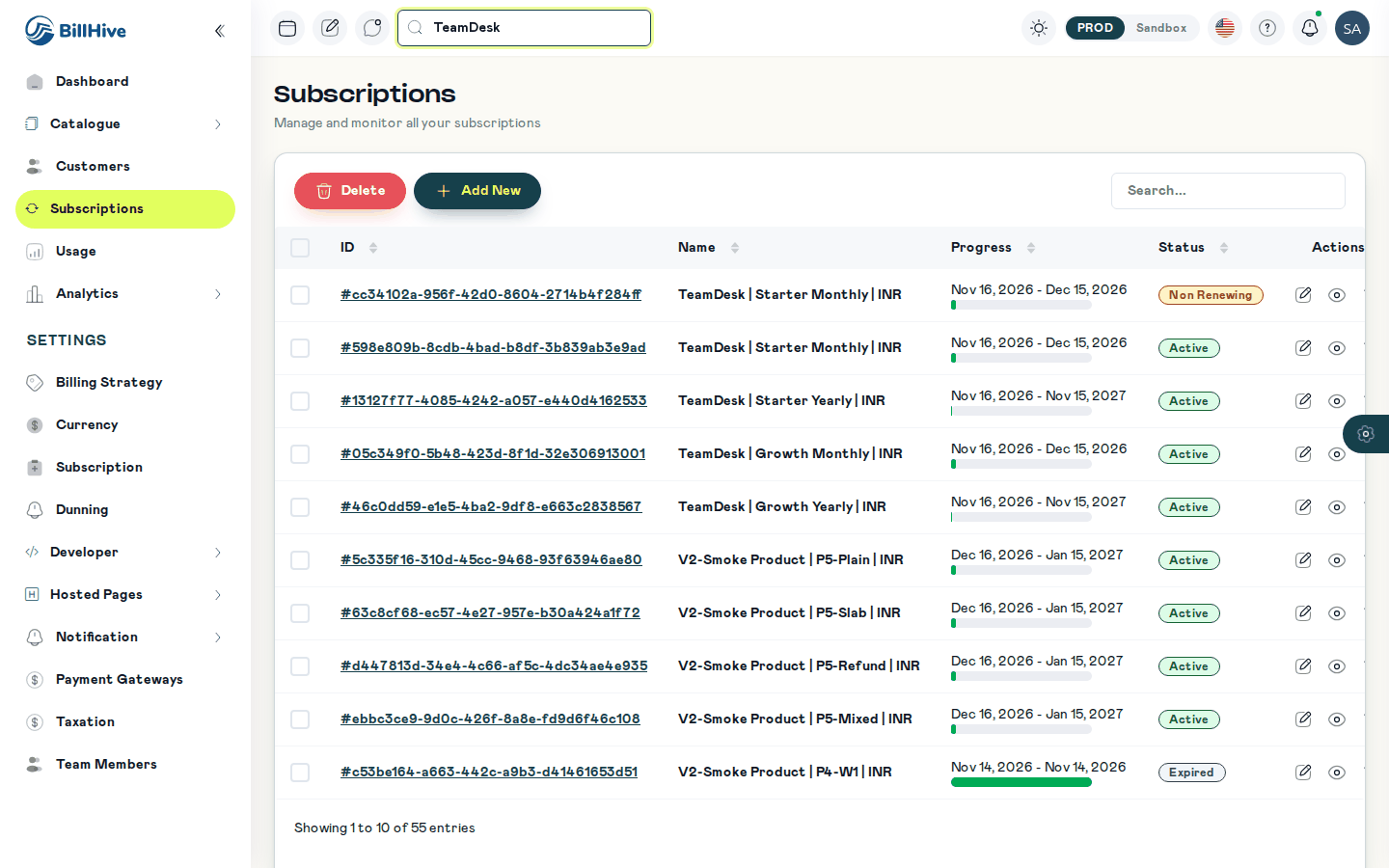
The Subscriptions list.
URL: /subscriptions (all subscriptions) or within a customer’s page
The subscriptions table shows:
| Column | Description |
|---|---|
| Subscription ID | Clickable link to subscription details |
| Name | Product, Rate Plan, and Currency combined |
| Progress | Term date range with visual progress bar |
| Status | Color-coded status badge |
| Actions | View, Edit, Delete buttons |
Supports pagination (10 per page), full-text search, and sorting by last updated.
Subscription Statuses
| Status | Badge Color | Description |
|---|---|---|
| Future | — | Starts on a later date |
| Active | Green | Billing normally |
| Trial | Blue | In free trial period |
| Trial Pending Activation | Blue | Awaiting activation |
| Trial Expired | Gray | Trial ended without conversion |
| Paused | Yellow | Temporarily suspended |
| Non Renewing | Orange | Will expire at term end |
| Expired | Gray | Term ended, not renewed |
| Cancelled | Red | Explicitly cancelled |
| In Dunning | Red | Payment retry in progress |
Actions by status
The page shows only the actions that the status allows. The server uses the same rules.
| Status | Actions |
|---|---|
| Active | Pause, Cancel, Change Plan, Change Frequency, Add Addons, Manage Addons (remove or change quantity), Edit Next Billing Date, Remove Scheduled Pause, Renew |
| Paused | Resume, Cancel |
| Trial | Cancel (immediately only), Extend Trial, Convert to Paid Now. Change Plan and Change Frequency show as disabled. |
| Future | Cancel (immediately only) |
| Non Renewing | Renew, Cancel (immediately only) |
| In Dunning | Cancel (immediately only) |
| Cancelled | Reactivate |
| Expired | Reactivate |
| Trial Pending Activation, Trial Expired | None |
Active and Paused subscriptions can be cancelled Immediately, at End of Term or on a Specific Date. The other statuses that allow cancelling offer Immediately only.
If you call an action the status does not allow, the server returns a 400 error. For example: “Cannot change the plan of a subscription that is Paused.”
See also: Trials, Cancellation, Renewals, Addon Management, and the Subscription Lifecycle overview.