Notifications & Email
Last reviewed: 16 November 2026
BillHive emails your customers and your team when something happens: a subscription starts, an invoice is raised, a payment fails. Three settings screens control this:
| Screen | Decides |
|---|---|
| Settings > Notifications | Which notifications are sent, and to whom |
| Settings > Templates | What each email, SMS and document says and looks like |
| Settings > Mailbox | Which mail server the emails are sent through |
The full list of events is in Subscription Notifications.
Notifications
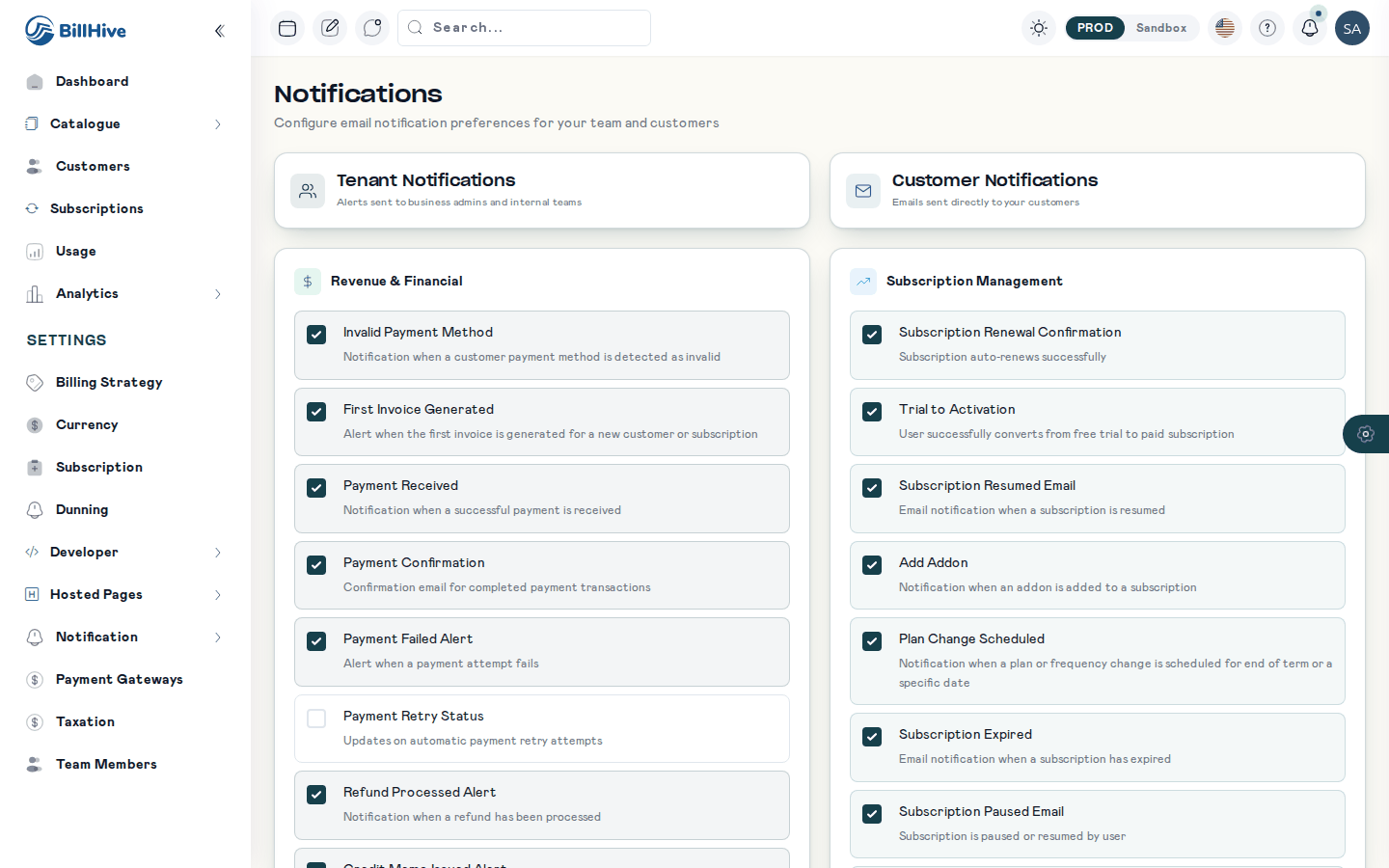
Settings > Notifications: tenant notifications on the left, customer notifications on the right.
The page has two sections:
| Section | Who receives it |
|---|---|
| Tenant Notifications | Alerts sent to business admins and internal teams |
| Customer Notifications | Emails sent directly to your customers |
Turn each notification on or off. Some notifications have a lead time. For example the trial-ending reminder shows Reminder sent N days before expiry; set Days before expiry to change when it goes out (5 by default).
Example. A B2B business turns off the customer Invoice Created email because its finance team sends invoices with a covering letter, but keeps Payment Failed on so customers fix card problems quickly.
Templates
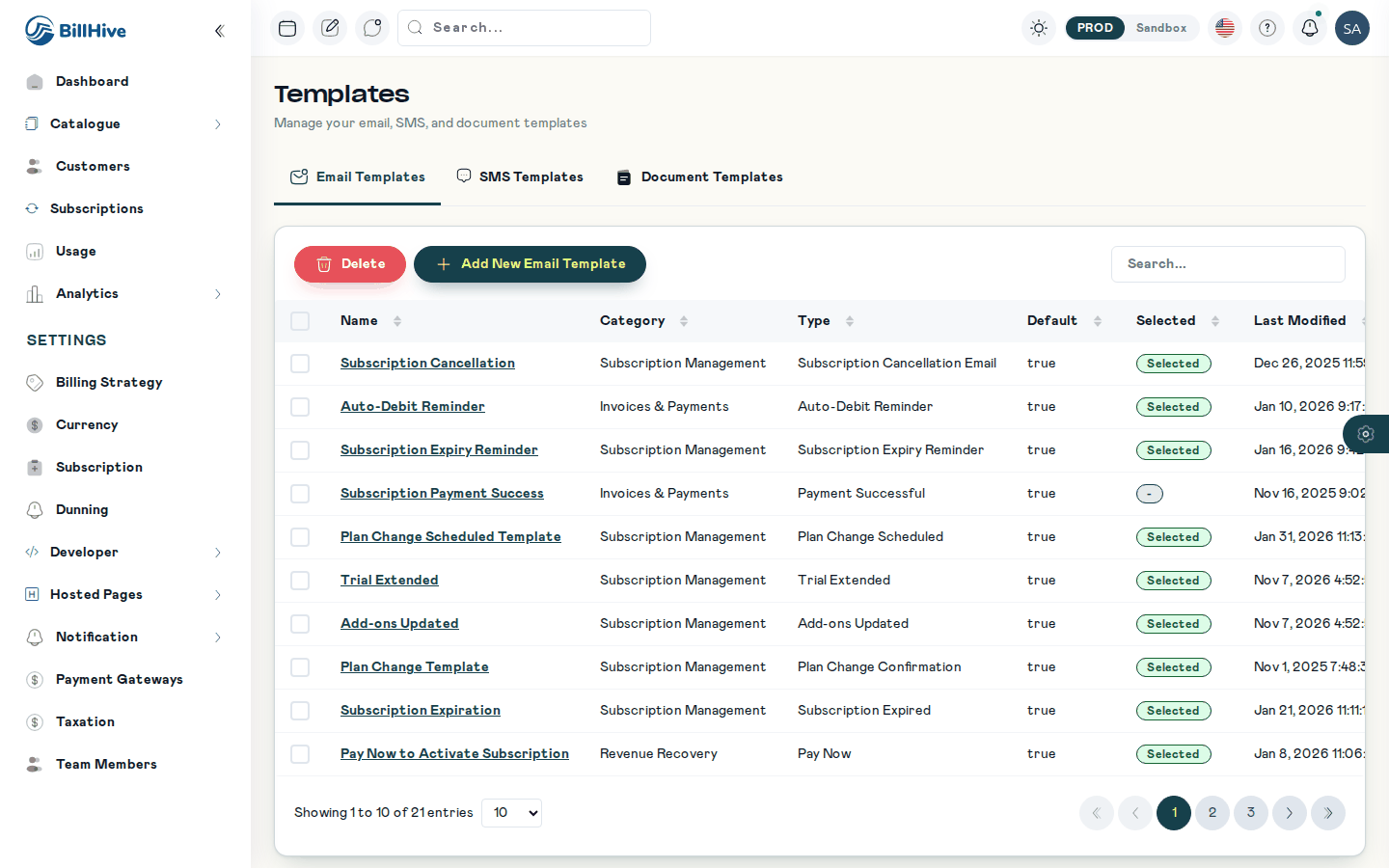
Settings > Templates.
Settings > Templates has three lists:
| List | Contents |
|---|---|
| Email templates | One per notification, with a category and sub type. One template per notification is marked Default. |
| SMS templates | Short messages for SMS notifications, where SMS is enabled for your account |
| Document templates | Invoice and other documents, as PDF or DOC |
Editing an email template
- Open the template. Its Template Name, Category and Type say which notification it belongs to.
- Edit the subject and the body.
- Click Insert to add a field, such as the customer’s name or the invoice amount. BillHive fills it in when sending.
- Click Insert Condition to show text only when a field matches a value (IF / ELSE).
- Use Preview and Test to check it.
- Click Publish to make it live, or Discard to drop your changes.
Document templates
Document templates control the layout of invoices and other documents. Choose the Document Type, the File Format (PDF or DOC) and the File Name, then customise the content. See Configuring invoice templates.
Mailbox
Emails are sent through an SMTP server linked to the sending address. To send from your own domain, configure your SMTP server under Settings > Mailbox:
| Field | Description |
|---|---|
| SMTP Server Name | Your mail server’s host name |
| SMTP Port | Usually 587 (STARTTLS) or 465 (SSL) |
| User name and password | Credentials of the sending account |
Click Save, then send a test from a template to check delivery.
Troubleshooting
| Problem | Check |
|---|---|
| Customer didn’t get an email | Is the notification on under Customer Notifications? Is the email in the customer’s communication profile? Check spam. |
| Emails stopped after SMTP change | Server name, port and credentials in Mailbox; your provider may block new senders |
| Wrong amount or name in an email | The variable inserted in the template |
See also Email and notification issues.