Plan & Frequency Changes
BillHive supports mid-term amendments to subscriptions — changing the rate plan (upgrade/downgrade) or changing the billing frequency. Both operations create an order and can include prorated pricing adjustments.
Change Plan
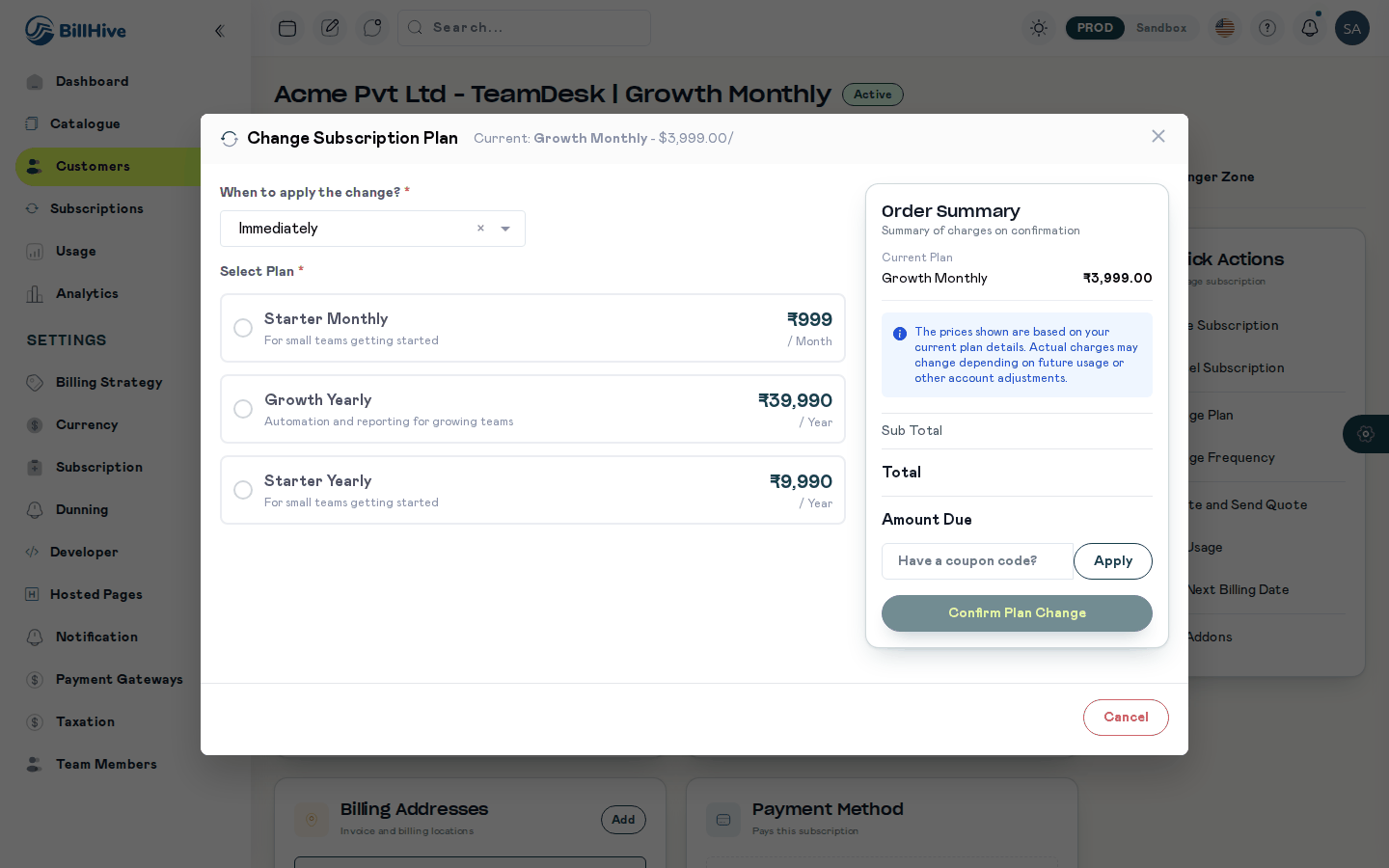
The Change Subscription Plan dialog: choose when, pick a plan, and check the order summary before confirming.
Moves the subscription to a different rate plan within the same product. This is how upgrades and downgrades are handled.
Available when: Status = Active. A Paused or Trial subscription cannot change plan or frequency; resume it or convert the trial first.
Form Fields
| Field | Required | Description |
|---|---|---|
| New Plan | Yes | Select from available rate plan prices. Shows plan name, price, and billing details. |
| Change Option | Yes | When the change takes effect: Immediately, End of Term, or Specific Date |
| Change Date | Conditional | Only required when Change Option = “Specific Date” |
Additional Options
- Addon selection — After selecting a new plan, available addons for that plan are shown. Addons the subscription already has that the new plan also offers are pre-selected. Toggle addons on/off.
- Coupon / Offer — Apply a coupon or offer code to the plan change.
- Order Estimate — A real-time pricing summary showing prorated credits, new charges, and the net amount.
What Happens
- An order is created with event type CHANGE PLAN.
- The current plan’s remaining period is prorated and credited (based on your proration settings).
- The new plan’s charges are applied from the effective date.
- The old plan’s plan-based addons end on the change date (credited when prorated billing is on). Addons on their own billing cycle carry over when the new plan offers them, and otherwise end with a credit. The new plan’s mandatory addons (price not included) and the addons picked in the change are billed like the plan and attached to the new term. See Addons During Plan Changes.
- An invoice is generated for any net charges.
Change Billing Frequency
Changes how often the customer is billed without changing the plan itself. For example, switching from Monthly to Annually.
Available when: Status = Active. A Paused or Trial subscription cannot change plan or frequency; resume it or convert the trial first.
Form Fields
| Field | Required | Description |
|---|---|---|
| New Billing Frequency | Yes | Select from available billing periods for the current plan. |
| Change Option | Yes | When the change takes effect: Immediately, End of Term, or Specific Date |
| Change Date | Conditional | Only required when Change Option = “Specific Date” |
| Include Recommended Addons | No | When billing frequency is plan-based, option to include recommended addons at the new frequency. |
What Happens
- An order is created with event type FREQUENCY CHANGE.
- The current frequency’s remaining charges are prorated and credited.
- New billing charges at the updated frequency begin from the effective date.
- If “Include Recommended Addons” is checked, addon prices at the new frequency are applied.
Changing to a different billing period
When the new plan bills on a different period than the current one (for example Monthly to Annual), the new price is not prorated.
- The customer is charged the new price in full (price × the number of billing cycles on the new plan).
- The unused part of the current term is credited, using your proration settings.
- A new term starts on the change date and runs for the new billing period × cycles. For example, an immediate change from Monthly to Annual on 11 October ends on 10 October the following year.
When the billing period stays the same, the new price is prorated over the days left in the current term, as described above.
Prorated billing setting
The Plan changes setting (Prorate now or Start a new term) decides how an Immediately or Specific Date plan change is priced. A tenant that never saved it is on Prorate now.
| Setting | Charge | Credit for the old plan | Term |
|---|---|---|---|
| On (default) | The new plan, prorated over the days left (full price when the billing period changes), and its add-ons on the same basis | The unused part of the old plan, plus the add-ons the change ends | Unchanged, or a new term when the billing period changes |
| Off | The new plan in full (price × cycles), and its add-ons on the same basis | None, for the plan or its add-ons (the add-ons still end) | A new term starts on the change date, for the new billing period × cycles |
A billing frequency change with the setting off gives no credit either. End of Term changes are the same either way: the new plan is billed in full for the next term, with no credit (see End of Term changes).
The estimate shown before you confirm and the order placed use the same setting, so the preview matches the invoice. For example, moving from 1,000 to 3,000 on day 10 of a 30-day term charges 3,000 with no credit when the setting is off.
Multi-cycle terms
A term bought for several billing cycles (for example 3 months on a monthly plan) is priced per cycle. On a plan change in the same billing period, both the charge for the new plan and the credit for the old plan are calculated on price × cycles, then prorated over the days left in the term. A mid-term upgrade on a 3-cycle monthly term from 1,000 to 3,000 with 2 of the 3 months left charges 6,000 and credits 2,000.
An End of Term change bills the new price in full for the next term and gives no credit.
End of Term changes
An End of Term change takes effect on the day after the current term ends, in your time zone. A term ending on 30 November changes on 1 December. The next term is billed once, and how depends on whether the billing period changes.
Same billing period (for example Monthly to another Monthly plan). The renewal bills the change, and there’s no separate invoice:
- The change order has no charge. It holds one zero-amount line that records the new price.
- When you place the change, the pending renewal order is rebuilt on the new price, for the same renewal date and the current term’s billing cycles. The old renewal order is cancelled, as described in What happens to the next renewal.
- If the old renewal invoice was already raised (inside the renewal offset days), it is cancelled when nothing was paid, or credited when it was paid. The new renewal invoice is raised straight away and uses that credit.
- On the renewal date the renewal bills the new price, starts the next term on the new plan, and completes the change order. The customer then gets the plan change confirmation.
Another billing period (for example Monthly to Annually). The change bills the new term:
- The change waits until the day after the term ends. The new term starts that day, for the new billing period, and the change order bills it.
- The old renewal is not invoiced and does not run that day: its renewal schedule is stopped when you place the change. Once the new term starts, the old renewal order is cancelled and the next renewal is created for the day after the new term ends.
A subscription that doesn’t renew can’t change at End of Term. This covers auto-renew off, Non Renewing, and a Fixed price with every cycle billed. The change is rejected with “This subscription doesn’t renew, so it can’t change plan at End of Term. Choose Immediately or a Specific Date.”
What happens to the next renewal
A change of plan or billing frequency also moves the subscription’s next renewal, so the customer is renewed on what they have now and not on what they had before.
When the change is done and the new term has started, and the subscription has a renewal for the next cycle that has not been processed yet (a renewal order that is Created, Payment Pending, or Payment Received, scheduled on or after the new term’s start date):
- A new renewal order is created from the current term. It renews the new plan or frequency, at the term’s price, for the day after the new term ends.
- The old renewal order is cancelled, and the workflows it had waiting are removed. If an auto-debit was already scheduled for the old renewal (a subscription that pays by mandate), it is cancelled at the payment gateway first, so the customer is not charged for the old renewal. If the gateway does not confirm the cancellation, the step stops and is retried; the new renewal is not collected while the old auto-debit may still go through.
- The old renewal invoice is dealt with by what was paid on it:
| Old renewal invoice | What happens |
|---|---|
| Nothing paid | The invoice is cancelled. |
| Paid in full | A credit memo for the paid amount is posted to the subscription. The invoice is kept. |
| Partly paid | A credit memo for the paid part is posted, and the invoice is cancelled. |
- The invoice and payment request for the new renewal are created 5 days before the renewal date, as in the automatic renewal schedule. Any credit memo from step 3 is applied to the new invoice then, so the customer only pays the difference.
The credit memo is account credit for the subscription, not a payment tied to the new invoice. It is applied when the new renewal invoice is created, to the subscription’s oldest open invoice first. Normally that is the new renewal invoice. If the subscription has another invoice still open (for example an unpaid invoice from the change itself), the credit pays that invoice first, and only what is left goes to the renewal invoice.
After a billing frequency change the renewal covers one billing period of the new frequency (for example one year after a change from Monthly to Annually). After a plan change the renewal keeps the number of billing cycles the subscription renewed for before (for example 3 months stays 3 months on the new plan).
If the subscription has no pending renewal order (auto-renew is off, or the status is Non Renewing), nothing is created and the subscription keeps not renewing.
A renewal that has already been processed is not touched. This is a renewal order in Processed Payment Pending (the term has already rolled over and the auto-debit for it is on its way) or Completed. It belongs to the current term, so its invoice and payment stay as they are. A renewal scheduled before the new term’s start date is not touched either.
The newest action wins
A subscription has one pending action at a time. Placing a plan change, a frequency change, a pause or a cancellation discards whatever scheduled change it replaces:
- A new plan or frequency change discards any scheduled plan or frequency change (of either kind), a scheduled pause and a scheduled cancellation. A subscription that was waiting to cancel returns to Active, and the change is checked after that.
- A pause or a cancel discards any scheduled plan or frequency change.
- Discarding a change stops its workflow, voids its invoice (or issues a credit note for what was paid), cancels the order, puts the pending renewal back on the current plan, writes an activity-log entry naming what replaced it, and sends the customer a “scheduled change cancelled” notice.
- While an Immediately change is still being processed (Created, Payment Pending or Processed Payment Pending), a new plan change, frequency change, cancel or pause is refused with “A plan change is still being processed”.
Removing a scheduled change
On the subscription details page, Remove scheduled change discards a scheduled End of Term or Specific Date change without placing anything new. The API is POST /subscriptions/{subscriptionId}/remove-scheduled-change; it returns 400 “No scheduled plan or frequency change” when there is nothing to remove.
If a scheduled change still fires on a subscription that is no longer Active, its workflow cancels the order and ends. It does not raise an incident.
An upgrade on a mandate
A subscription that pays by auto-debit has a payment mandate with a maximum amount. When an upgrade or frequency change would debit more than that maximum (the larger of the amount due now and the renewal amount on the new plan, both after GST), BillHive does not place a debit that would fail.
- Raise in place. BillHive first tries to raise the maximum of the existing mandate. Neither Cashfree nor Razorpay is confirmed to allow this without the customer authorizing again, so today this step is skipped.
- Request a new mandate. The change order moves to Awaiting Mandate and the subscription stays on the old plan. The customer gets a link to approve a new mandate whose maximum is the larger amount plus 20% headroom (for example, an upgrade from 1,200 to 3,000 asks for 3,600).
- Approval. The change is re-estimated on the approval date, billed and collected with the new mandate, and the new term starts that day. The old mandate is cancelled only after the new one is authorized, so the customer always has a working mandate.
- No approval. An Immediately change waits 7 days, with one reminder on day 3. After that the change order is cancelled and the customer is told. The old plan and mandate stay as they are.
For End of Term and Specific Date changes the mandate is requested when the change is placed. Approval only unlocks the change, which still takes effect on its chosen date; if the mandate is not approved by that date (or, for a same-period End of Term change, by the day the renewal is billed: the renewal date minus the renewal offset days) the change is cancelled.
The mandate wait is Cashfree only for now. When the active mandate is on another gateway (Razorpay), an upgrade over the maximum is not held: the change goes ahead as if the mandate covered it, and a warning is logged.
A downgrade never asks for a new mandate. Cancelling, pausing or placing another change while a change is Awaiting Mandate discards it and cancels its mandate request; the old mandate stays. The merchant subscription page shows “Upgrade waiting for mandate approval” with the approval link.
Effective Date Options
All amendments support three effective date modes:
| Option | Behavior |
|---|---|
| Immediately | Change takes effect now. Current period is prorated. |
| End of Term | Change takes effect the day after the current term ends. No proration. Billed by the renewal when the billing period stays the same. |
| Specific Date | Change takes effect on a chosen future date. Proration is calculated accordingly. |
Order Estimates
Before confirming any change, BillHive displays an order estimate showing:
- Credits for the unused portion of the current plan/frequency
- New charges for the updated plan/frequency
- Addon adjustments
- Net amount (charge or credit)
- Applied coupons or discounts
This estimate is calculated in real-time and reflects the amount that will be invoiced.
Estimates for scheduled changes
The estimate is shown for all three options, not only Immediately. For End of Term and Specific Date it reads “Estimated, billed on <date>”:
- Specific Date: prorated as of that date, and billed on it.
- End of Term, same billing period: the amount of the renewal on the new plan (the new price at the current term’s cycles, with the subscription’s add-ons and the change’s charges). It is billed when the renewal invoice is raised, which is the effective date minus the renewal lead time (5 days by default), or today if that day has passed.
- End of Term, another billing period: the new term’s charge, billed on the effective date.
The estimate also returns the change’s effectiveDate and billedOn. The amount can still change before then, for example through offers, GST and credits. A Specific Date outside the current term is rejected in the estimate too.