Offers & Coupons
Last reviewed: 16 November 2026
Overview
An offer reduces what a customer pays. BillHive has two kinds:
- a Discount, which you apply to an order, and
- a Coupon, which has a code the customer (or you) enters.
A coupon set is a batch of single-use codes for one coupon, for campaigns where every customer gets their own code.
Why it exists. Discounts win deals, reward loyalty and run promotions, without creating extra rate plans for every price point.
Who uses it. Marketing and sales set offers up. Admins apply them to orders. Customers enter coupon codes at Hosted Checkout.
Prerequisites. At least one product with rate plans. See Products.
Navigation
| Screen | Path |
|---|---|
| Offers list | Catalogue > Offers |
| New offer | Catalogue > Offers > Add New Offer |
| Offer details | Click an offer’s ID |
| Coupon sets | Catalogue > Coupon Sets |
Offers list
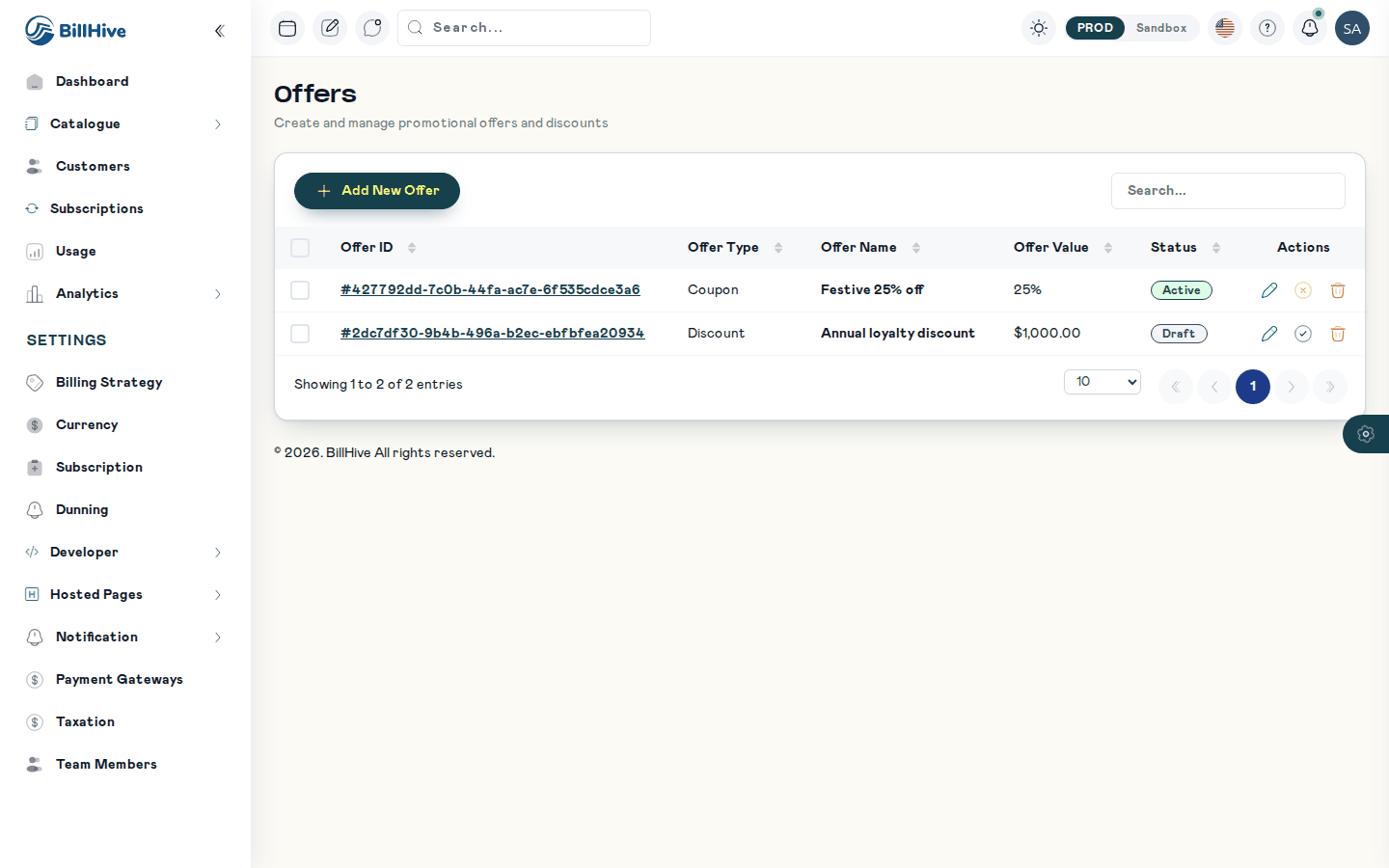
The Offers list. Draft offers can be activated from the Actions column.
| Column | Description |
|---|---|
| Offer ID | Opens the offer details |
| Offer Type | Discount or Coupon |
| Offer Name | The internal name |
| Offer Value | The amount or percentage |
| Status | Draft, Active, Inactive or Expired |
| Actions | Edit, Activate (or Deactivate), Delete |
Only Active offers can be applied. Deactivating an offer also stops it on renewals of subscriptions that already have it.
Creating an offer
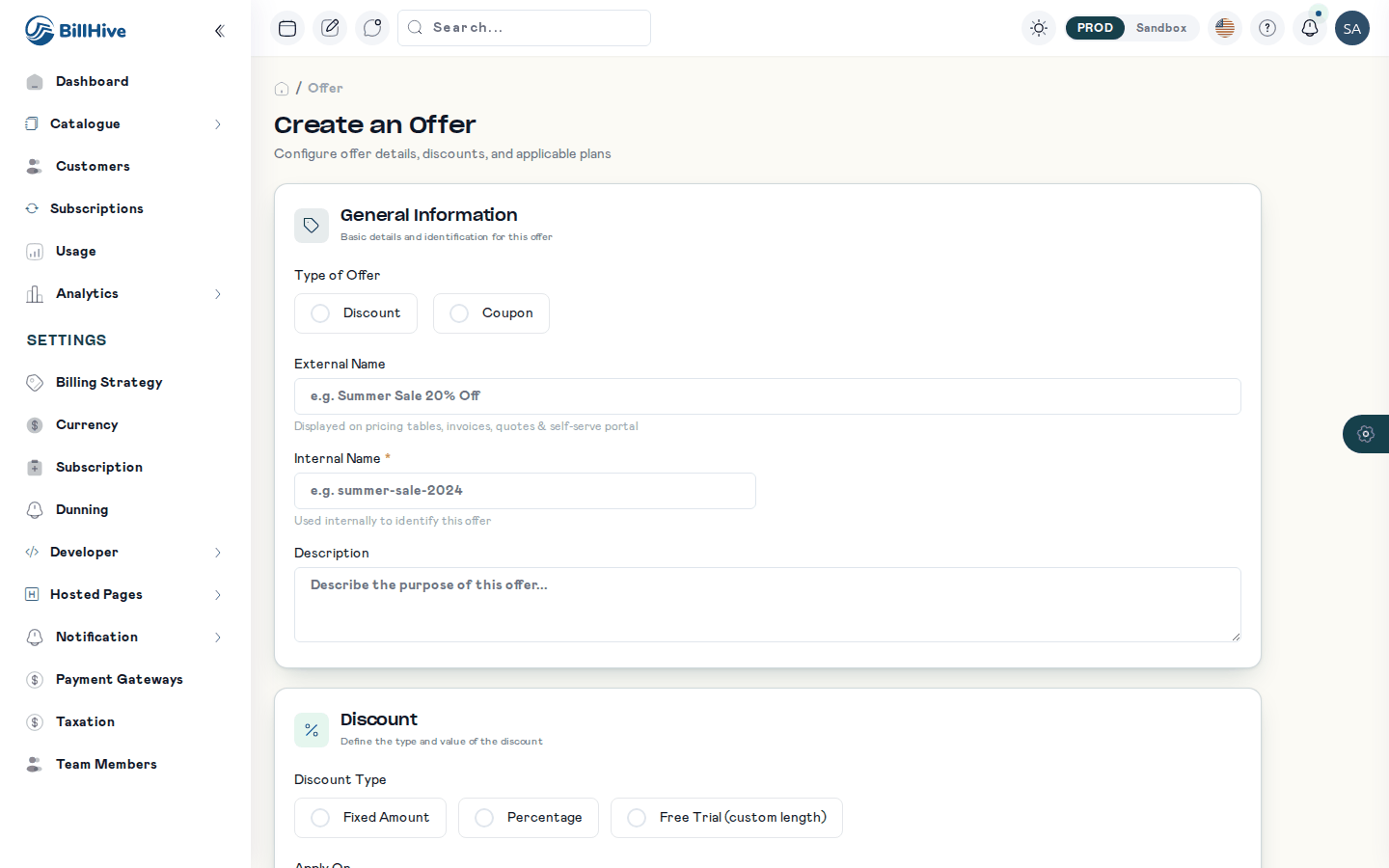
The Create an Offer form.
- Go to Catalogue > Offers and click Add New Offer.
- Fill in the fields below.
- Save. The offer is created as a draft.
- Open the offer and link it to rate plans, add-ons or charges (see Applicable items).
- Click Activate in the offers list.
Fields
| Field | Required | Description |
|---|---|---|
| Type of Offer | Yes | Discount or Coupon |
| Coupon Code | For coupons | The code customers type, e.g. WELCOME20 |
| Internal Name | Yes | Your name for the offer, shown in the portal |
| External Name | The name customers see on invoices and checkout | |
| Description | Notes for your team | |
| Discount Type | Yes | Fixed (an amount), Percentage, or Custom Trial (a trial period instead of money off) |
| Currency and Amount | For Fixed | The amount off, at least 1 |
| Percentage | For Percentage | The percentage off |
| Custom Trial Period | For Custom Trial | Trial length: number and period |
| Apply On | Yes | Invoice Amount (the whole order) or Each Specified Item (only the linked items) |
| Duration of Discount | Yes | Forever, Single Use or Limited Time |
| Discount Duration | For Limited Time | Number and period, e.g. 3 Month. At least 1 |
| Expiry Date | Last date the offer can be newly redeemed | |
| Minimum Purchase Amount | The order must reach this amount | |
| Maximum Redemptions (All Customers) | Unlimited or a Specific Number (Total Redemption Count) | |
| Redemptions Per Customer | Unlimited or a Specific Number (Per Customer Count) |
Discount duration
| Duration | What happens |
|---|---|
| Forever | Applies to the first order and every renewal |
| Single Use | Applies once. Not carried to renewals; an account can’t use it again |
| Limited Time | Applies to renewals until the first-applied date plus the duration |
The Expiry Date limits new redemptions only. A customer who already has a Forever or Limited Time offer keeps it after the expiry date. See Discounts on renewal.
Applicable items
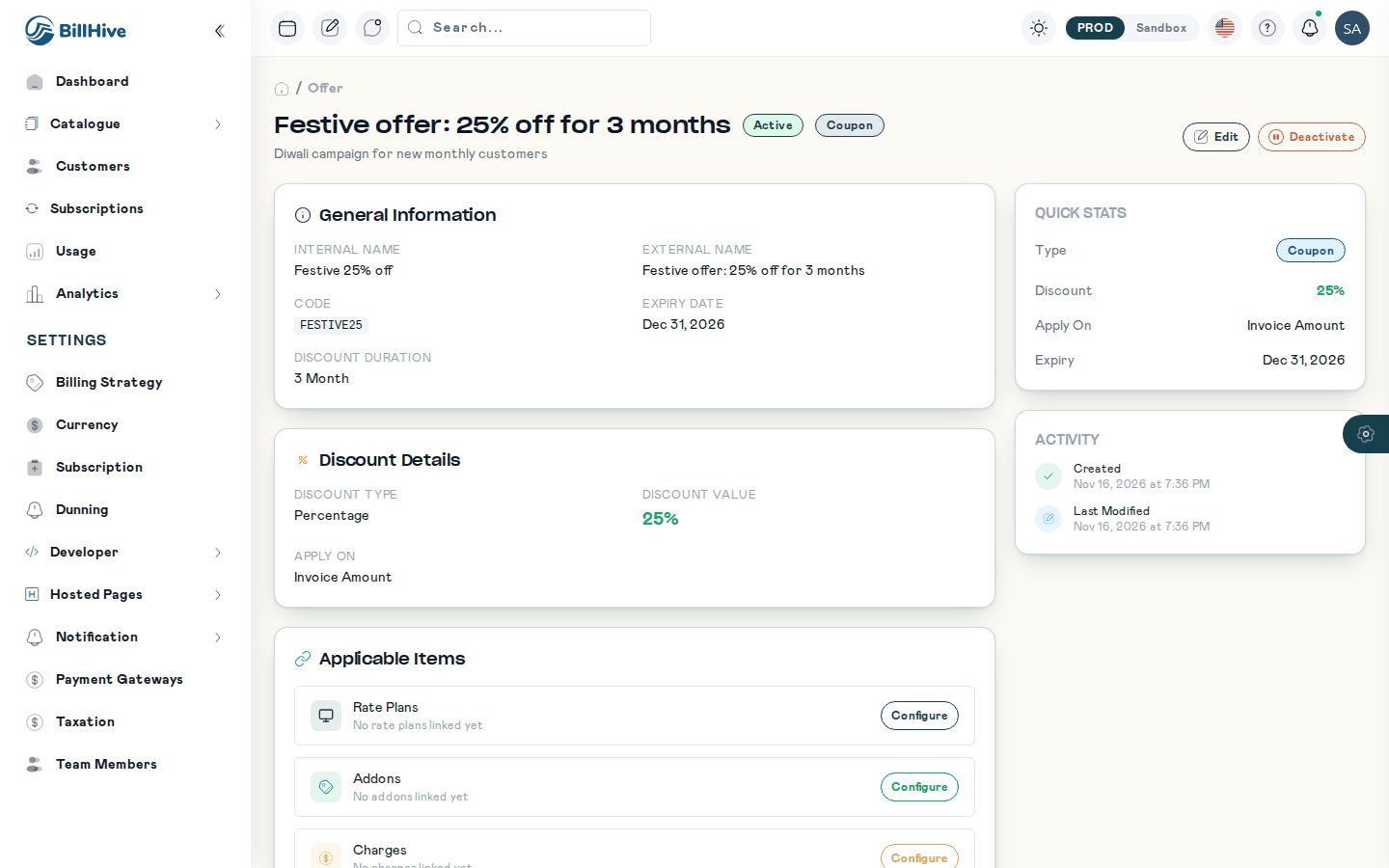
An offer details page. Link rate plans, add-ons and charges under Applicable Items.
On the offer details page, the Applicable Items section has three tabs: Rate Plans, Addons and Charges. For each, choose:
| Option | Meaning |
|---|---|
| All | Every plan (add-on, charge) is eligible |
| None | None are eligible |
| Specific | Pick individual items |
| By Criteria | Filter by product, currency and frequency |
Coupon sets
Use a coupon set when each customer should get a unique, single-use code.
- Go to Catalogue > Coupon Sets and click Create Coupon Sets.
- Pick a tab:
- Auto-generate tab: enter the Number of Coupons, and an optional Prefix and Suffix. The Code Preview shows the format, e.g.
SUMMER-A1B2C3-2026. - Upload CSV tab: a
.csvfile with one code per row under acoupon_codeheader. Use Download sample CSV for the format.
- Auto-generate tab: enter the Number of Coupons, and an optional Prefix and Suffix. The Code Preview shows the format, e.g.
- In both tabs, enter the Coupon Set Name and choose the Coupon (an offer of type Coupon).
- Click Upload Coupons (or the generate button).
Each code has a status: Unredeemed, Redeemed or Archived. A redeemed or archived code is refused.
Applying an offer
| Where | How |
|---|---|
| New subscription | Add the offer in the order form; the estimate shows the discount |
| Plan change | Coupon / Offer in the Change Plan form |
| Hosted checkout | The customer enters the coupon code |
| API | Add the offer to the order’s cart |
Business rules and validations
When an offer is applied, BillHive checks it and shows the reason when it is refused:
| Check | Message |
|---|---|
| Offer not Active | This offer is currently inactive or unavailable. |
| Amount or percentage missing | This offer is not configured correctly. Please contact support. |
| Total redemptions reached | This offer has reached its maximum redemption limit. |
| Past its expiry date | This offer has expired and is no longer valid. |
| Per-customer limit reached | You have already used this offer the maximum number of times. |
| Single Use already used by the account | This offer has already been used and cannot be applied again. |
| Limited Time period over | The validity period for this offer has ended. |
| Order below the minimum | Your order does not meet the minimum purchase amount required for this offer. |
| Coupon set code already used | This coupon code has already been redeemed. |
Form validations: Amount at least 1 for Fixed; Discount Duration at least 1 for Limited Time; counts at least 1 when Specific Number is chosen.
Billing impact
- The discount is shown as its own line on the order estimate and invoice, and GST is worked out on the discounted amount.
- On renewal, the discount is recalculated on the renewal’s lines, not copied, so a percentage discount follows a new price after a plan change.
- Invoice-amount offers carry to renewals on plan and add-on lines; usage is not part of that amount. Offers on charges don’t carry to renewals.
Example
Festive campaign. “25% off for 3 months” on all monthly plans, for the first 500 customers, one use per customer.
| Field | Value |
|---|---|
| Type of Offer | Coupon, code FESTIVE25 |
| Discount Type | Percentage, 25 |
| Apply On | Invoice Amount |
| Duration | Limited Time, 3 Month |
| Maximum Redemptions | Specific Number, 500 |
| Redemptions Per Customer | Specific Number, 1 |
| Rate Plans | By Criteria: frequency Monthly |
A customer on ₹1,200/month pays ₹900 + GST for three months, then ₹1,200.
FAQ
Can I change an offer after customers have used it? You can edit it, but changes apply to new orders and later renewals. Prefer creating a new offer for a new campaign.
How do I stop a discount for everyone? Deactivate it. It stops for new orders and on future renewals.
Can a customer combine two coupons? Each offer is checked on its own; test combinations with the order estimate before announcing them.